
描述
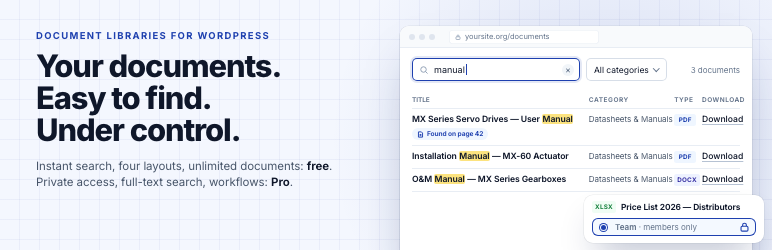
FileDeck is a WordPress plugin for documents, downloads and client portals. It turns file collections into a fast, searchable document library, PDF library or resource library with table, grid, gallery and folder layouts; tracks and protects every download; and gives each client a private document portal. For teams that need more than a file library, Pro adds document management proper — version history, review and approval cycles, scheduled expiry and a full audit trail.
See it in action: watch the one-minute tour below, try the live demo (the real plugin, no signup) or read the documentation.
A free version that’s actually usable. Every layout, every filter, and the Gutenberg block are free, and you can list as many documents as you like. Nothing essential is locked away just to force an upgrade.
What people use FileDeck for
- Safety data sheets and product documentation – SDS, manuals and spec sheets searchable by product code, with a QR code per sheet. SDS library
- Meeting minutes, agendas and newsletters – filed by year, with a free year filter. Minutes archive
- School policies and forms – for parents, with the library’s interface in nine languages. For schools
- Staff policies and procedures – an intranet policy library; Pro limits it to staff and tracks review dates.
- Client portals and secure file sharing – Pro gives each client a private document area. Client portal guide
- Annual reports and public documents – reports, public notices and tender documents.
What you won’t find elsewhere
- Full-text document search – Pro searches inside your PDFs, Office and text files — text is extracted on your own server; only the optional OCR for scanned documents sends files off-site, and only when you switch it on
- One-click migration – switching plugins? FileDeck imports the whole library, files and all (see below)
- Large file uploads – drawings, scans and video upload in resumable chunks, so your host’s upload limit is no longer the ceiling and a dropped connection resumes instead of restarting
- Library event webhooks – a signed JSON POST when a document is published, updated, retired or deleted; point Zapier, Make or your own system at it
- Client areas – give each client a private document portal with uploads and email notifications
Free features
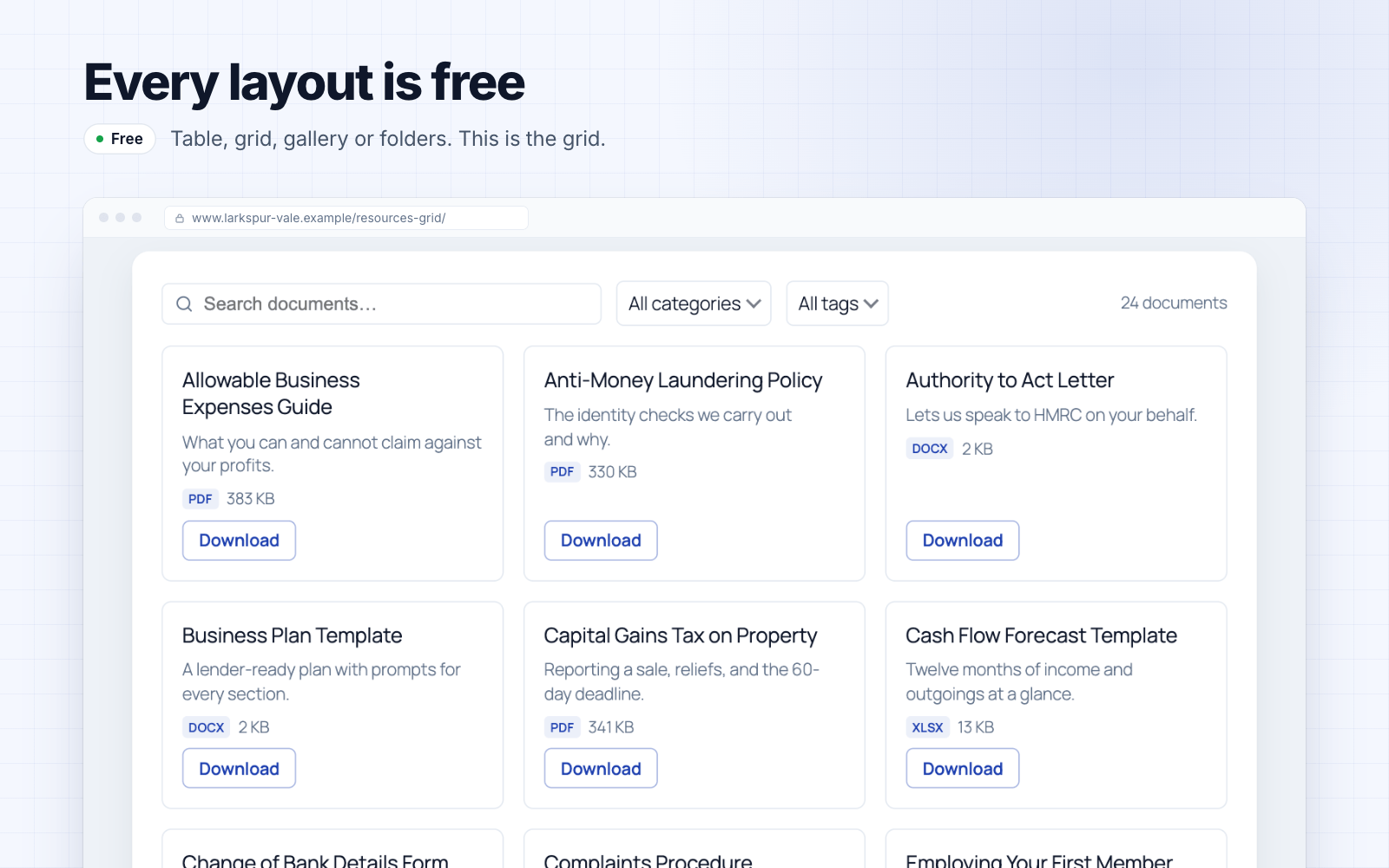
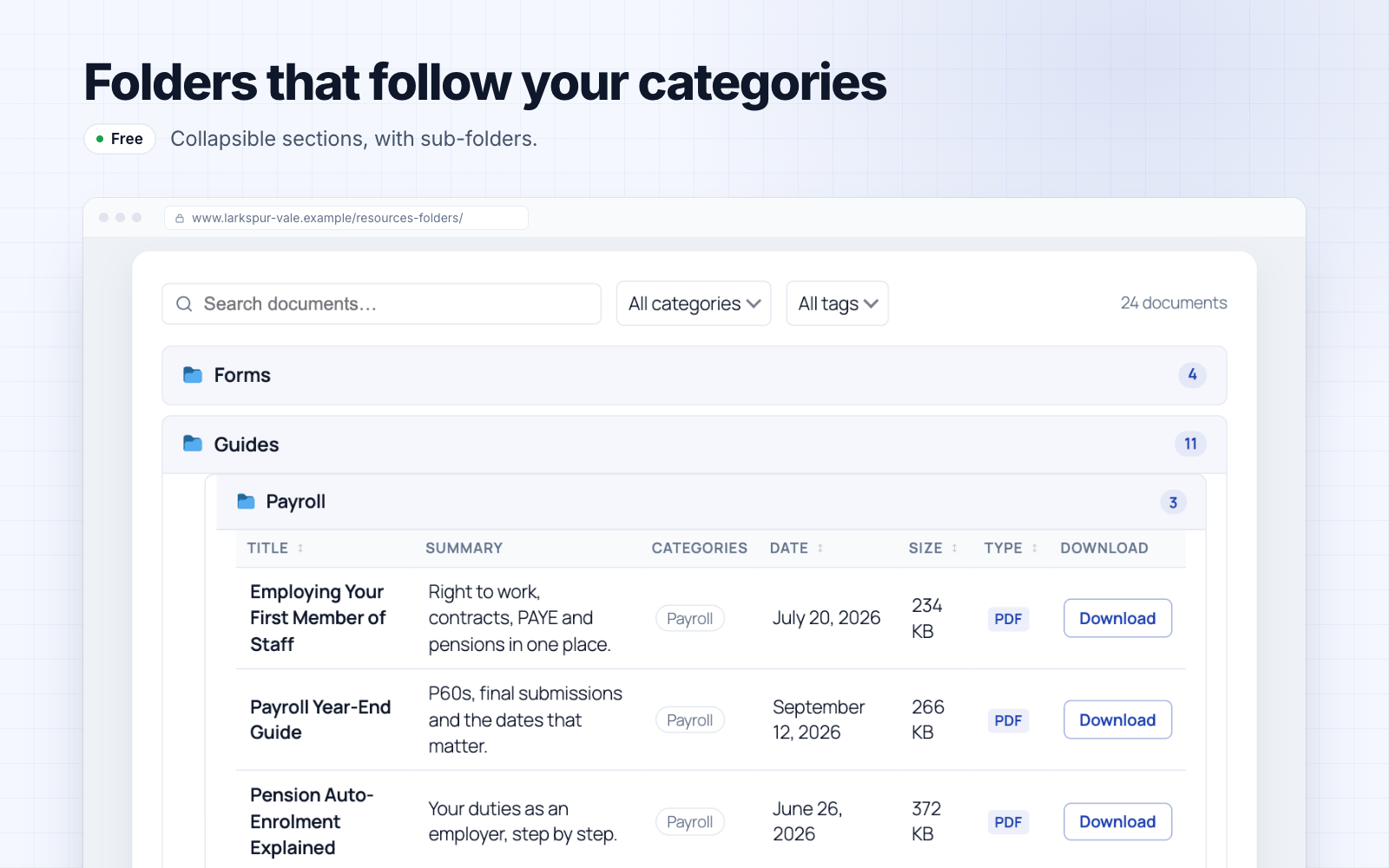
- Four layouts – searchable table, responsive card grid, a thumbnail-forward document gallery, or collapsible folders that follow your category hierarchy, sub-folders and all, in the order you choose
- Instant search – filters as you type, no page reloads
- Date-added filter – narrow a library to the past week, month or year (optional)
- Year filter – a dropdown of the years the library’s documents span, read from their dates, for minutes, newsletters and reports filed by year (optional);
year="2025"pins a library to one year - Reference number – a part number, document code or form number on every document: searchable, and a sortable column
- Group by category – one library rendered as a titled section per category, with one search box across all of them, instead of a stacked library per category
- AI-agent ready – read-only abilities for WordPress 6.9’s Abilities API, so agents can search the library through MCP
- Sortable columns – title, date, size, type, downloads, and more
- Unlimited documents – no cap; search scales automatically as your library grows
- Download tracking – per-document download counts
- Force download or open in browser – choose per document whether the button saves the file or opens it in the browser
- Library builder – design a library with a live preview on your own site, in your theme, then create the page in one click or copy its shortcode
- Gutenberg block + shortcode + six page builders – a native block, the
[filedeck]shortcode, and elements for Elementor (Library, Document Embed — also findable as “PDF Viewer” — and Search), Bricks, Divi, WPBakery (Visual Composer), Avada (Fusion Builder) and Beaver Builder - Translation-ready, nine languages bundled – the library’s front end ships translated into Hungarian, Slovak, Spanish (Spain and Mexico), German, French (France and Canada), Italian, Polish, Brazilian Portuguese and Simplified Chinese, with a
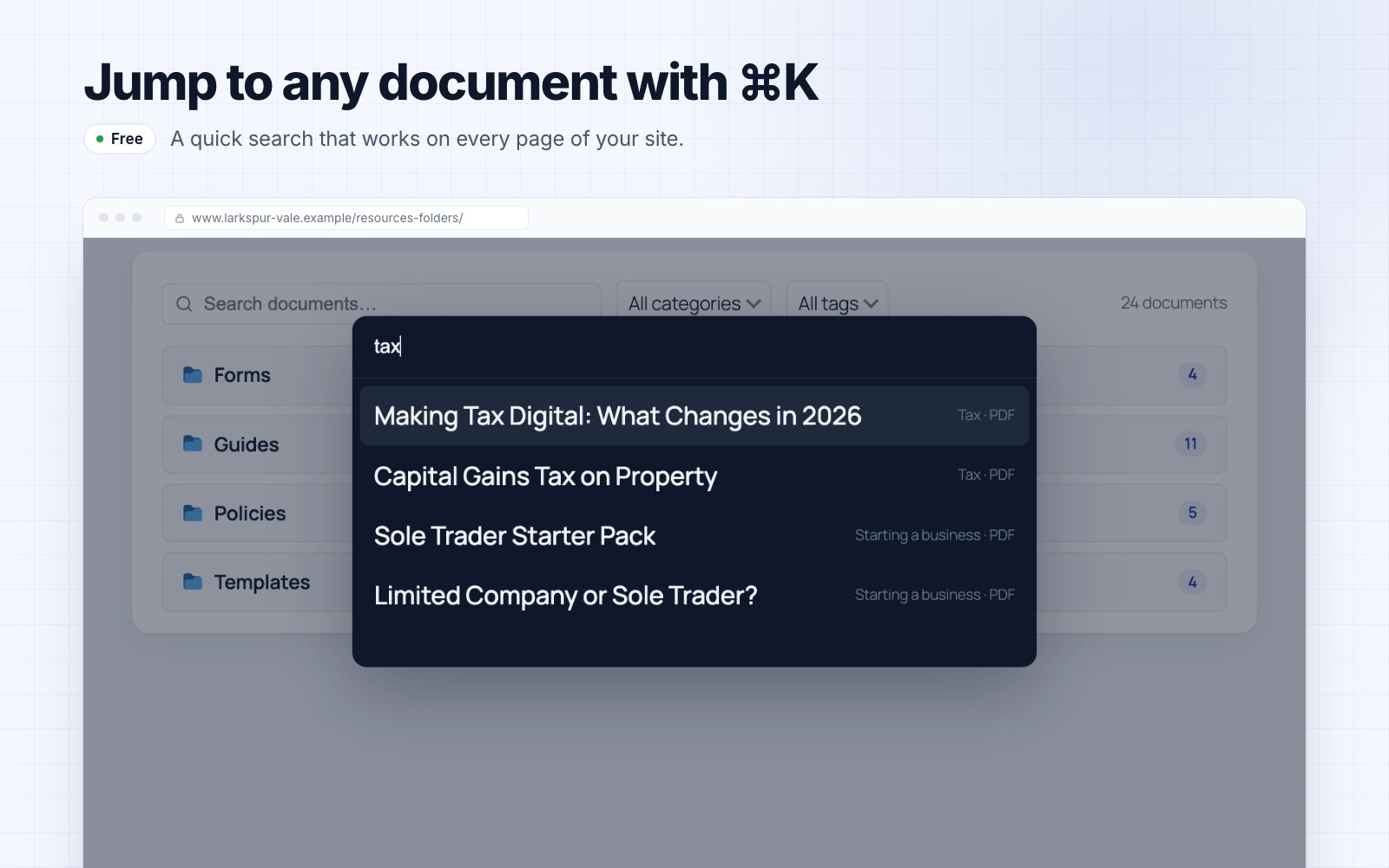
.pottemplate for translating it into any other language; documents and categories translate with WPML, Polylang and compatible plugins, and a bundledwpml-config.xmldeclares how document data behaves - ⌘K command palette – site-wide quick-search overlay that jumps straight to any document
- Sidebar widgets & Popular Documents block – Recent Documents and Top Downloads widgets for any sidebar, plus a Popular Documents block that puts the most-downloaded (or newest) list on any page; access-aware, so restricted documents never show to someone who cannot open them
- QR codes – generate a printable QR for any document (offline, nothing leaves your site) for noticeboards and posters
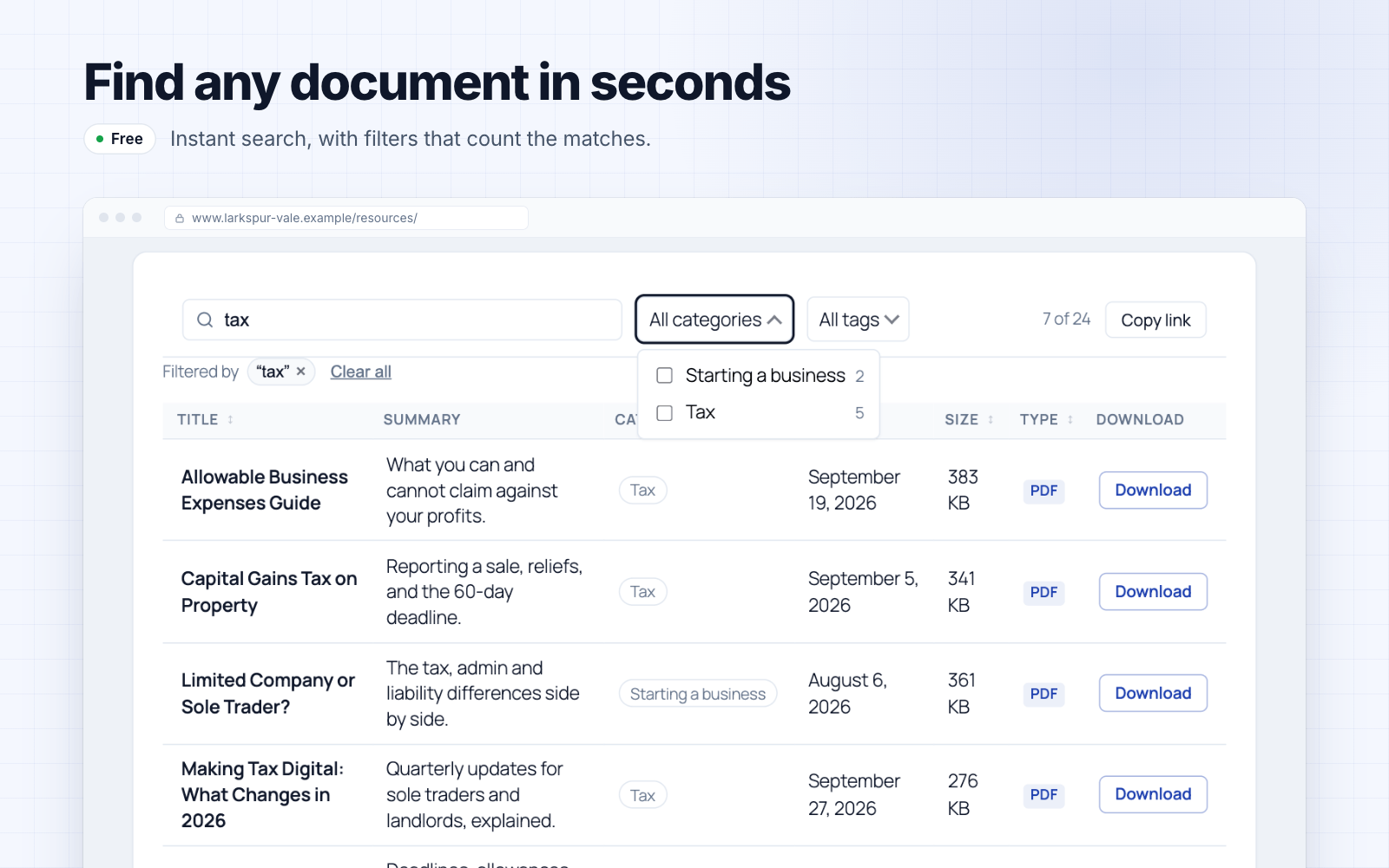
- Multi-select filters with counts – pick several categories or tags at once, see how many documents sit behind every option before you click, and drop any single one from the active-filter bar; put the filters above the library or under the column headings, and click a category in the table to filter by it
- Multi-column sorting – click a heading to sort, shift-click a second to break the ties (file type, then newest first)
- Shareable filtered views – search, filters, sort order and page all live in the URL with a one-click “copy link”; hover previews show a thumbnail and file details
- Pagination your way – page numbers, a Load more button or infinite scroll, plus an optional fixed library height that scrolls the documents in place
- External links – list documents hosted on Google Drive, Dropbox, SharePoint, or any URL — pasted Google Docs, Sheets, Slides and Drive links embed as live previews
- Custom field & taxonomy columns – add any post meta (cf:field) or taxonomy (tax:slug) as a column; Pro adds the field builder that defines those fields, fields that apply only to chosen categories, and one-click import of your existing ACF field groups
- Document previews – lightbox preview for PDFs and images, and featured images open in a lightbox from the image column
- Inline document embed – embed a single document as an always-visible viewer on any page with the
[filedeck_embed]shortcode, the Document Embed block or the Elementor widget: PDFs, images and Google links, with width and height controls, an optional download link and a full-screen button - Single document pages – a page per document listing its reference, dates, categories and tags (you pick which), with a download button
- Standalone search & links –
[filedeck_search],[filedeck_login], and[filedeck_download]shortcodes - Styles to match any theme – a full design-token system: a “Match my theme” preset that inherits your theme’s colours, Minimal/Bordered/Compact presets, a built-in light/dark/auto colour scheme, accent + surface + text colours, plus link styles, custom download-button text, empty messages and pagination — no CSS required, and every element is a
--fdk-*variable when you want to go further - Any file type – PDF, Word, Excel, PowerPoint, OpenDocument, images, audio, video, and more
- Lightweight – no jQuery on the frontend; assets load only where a library appears
- Old links keep working – after a migration, old download links, item pages and shortcodes open your FileDeck documents, even if Pro lapses
- Theme template overrides – copy a template into your theme’s
filedeck/directory to replace library markup without forking the plugin - Accessible – keyboard-sortable columns, ARIA labels, screen-reader friendly
Switching from another WordPress document plugin?
FileDeck Pro includes a one-click migration tool for supported plugins, including Download Monitor, WordPress Download Manager, Document Library Pro, Shared Files and others.
Import your existing documents, files, categories, tags and supported metadata directly from your WordPress database — without manually exporting files or mapping columns.
Your original library remains intact while you review your migrated documents. Some settings, access permissions and metadata may require review depending on the source plugin and version. We’ll help you move free.
FileDeck Pro
Upgrade for the features organizations need — from $59/year, your renewal never increases, and every purchase is covered by a 30-day money-back guarantee:
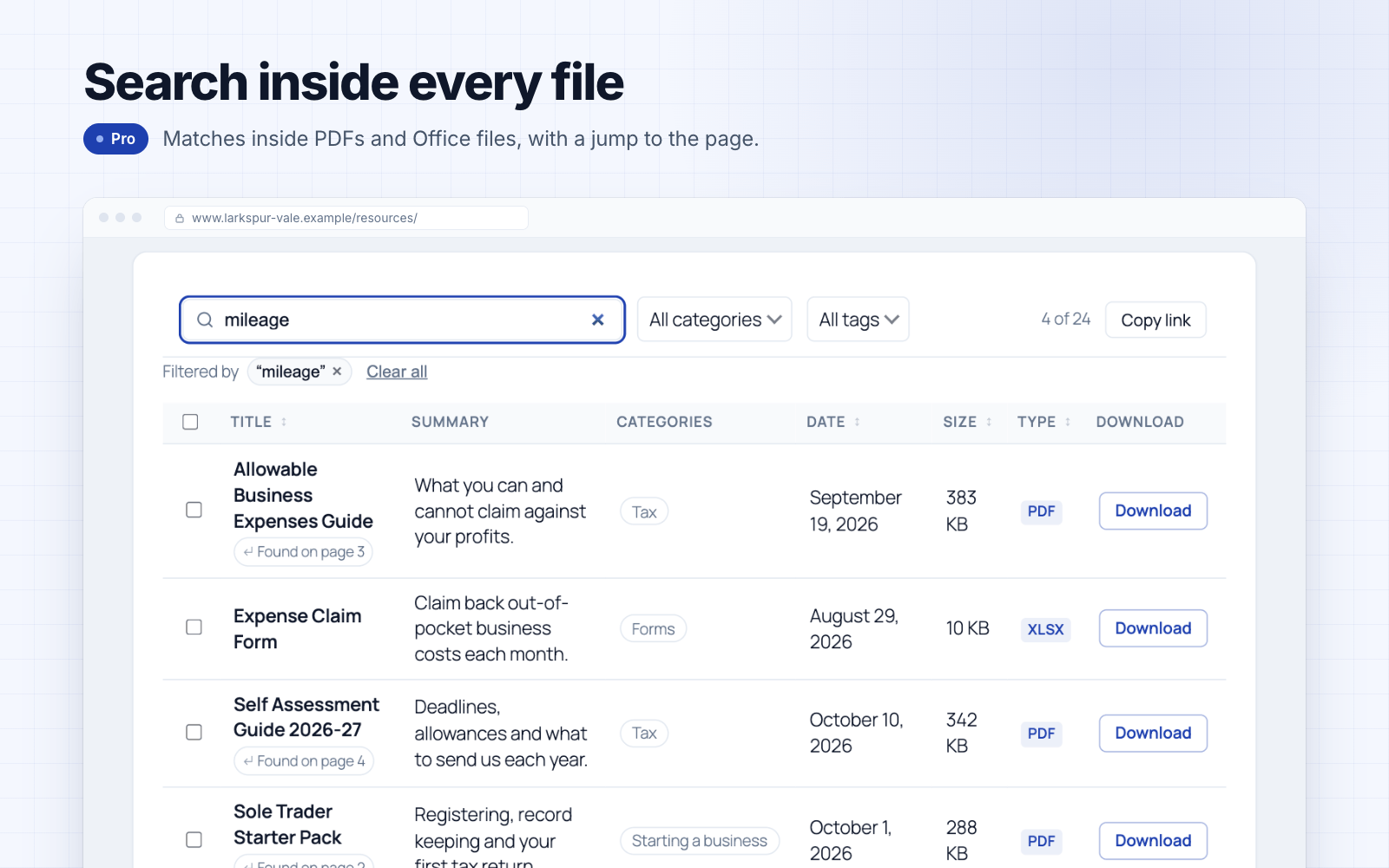
- Full-text search inside files – search the text inside PDFs, Office documents and text files (optional OCR makes scanned PDFs searchable too); extraction runs on your own server, and results tell you which page of a PDF the match is on so you can jump straight to it
- Access control – role restrictions on categories, password protection on a category or any single document, plus assigning a document to specific named people or to a group you define once and reuse — an assigned document is hidden from everyone else, not padlocked. Site-wide IP rules can limit downloads to your own networks, and a refused visitor can be sent to a page of your own instead of a dead end
- Protected files – restricted files move to a deny-all vault and stream only after an access check, so direct file URLs stop working; optional signed links expire, for sharing with someone who can’t log in, and a single-use link works for exactly one download and then stops. Optional hotlink protection refuses downloads requested from other sites’ pages
- Share button on every document – copy the link, open the device share sheet, or send it by email, X, Facebook, LinkedIn or WhatsApp; shares the document page, never the file, and loads nothing from any network until a visitor picks one
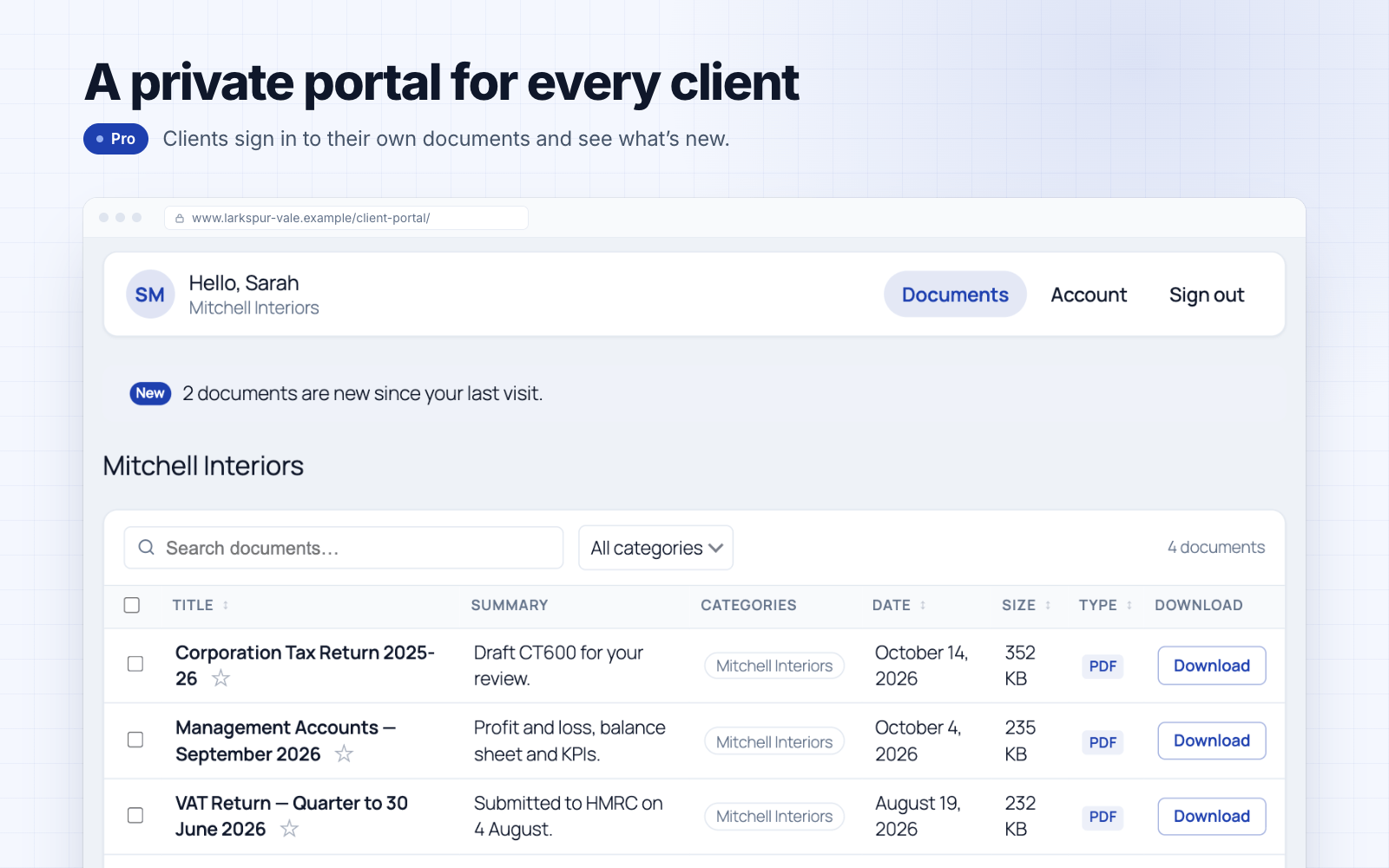
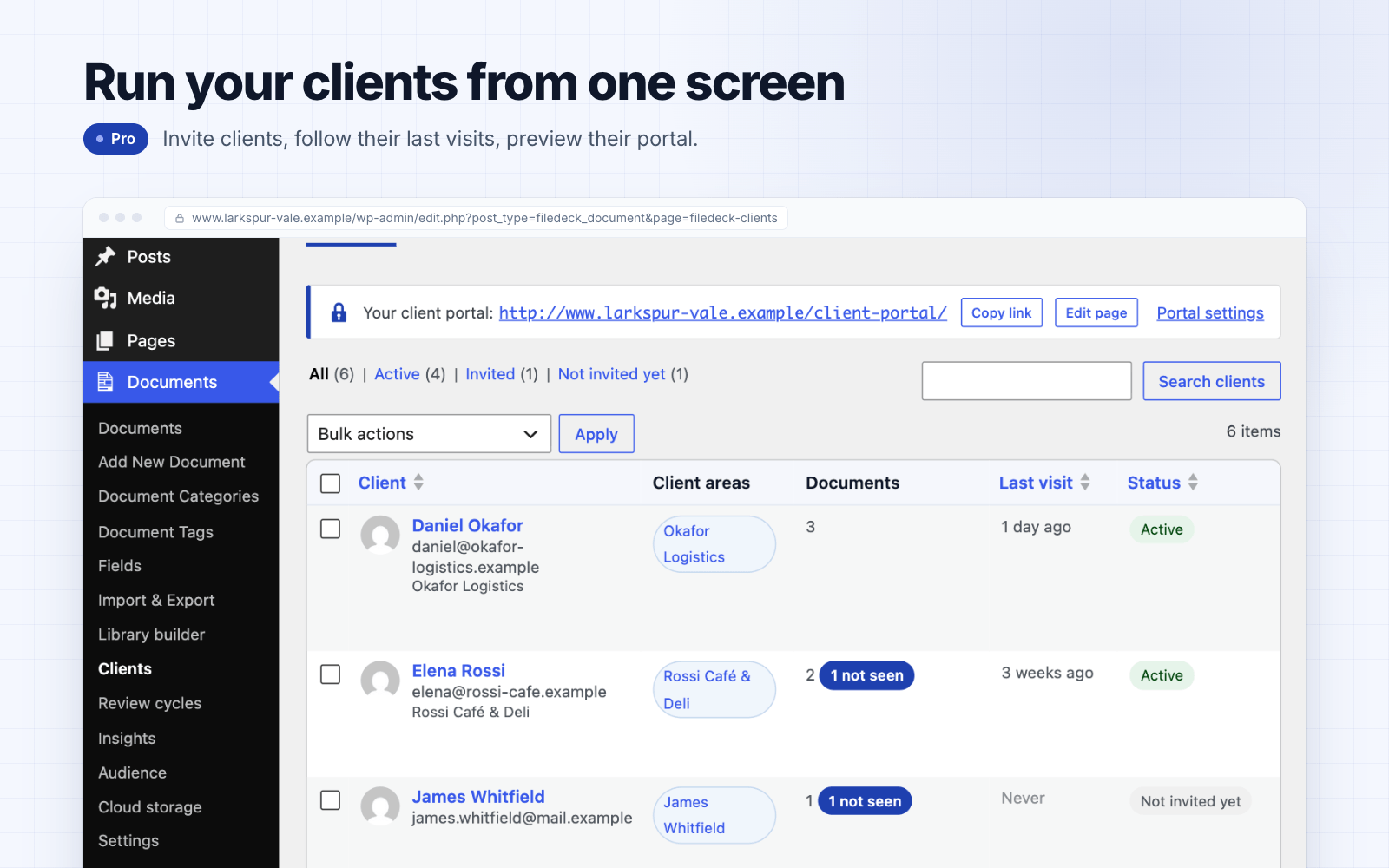
- Client portal – add a client and FileDeck creates their account, a private client area and an emailed invitation. Clients sign in on your site, not the WordPress dashboard, to their documents, uploads and account page. Admit people by name, by group, by email domain, or by membership plan (MemberPress, Paid Memberships Pro, WooCommerce Memberships, Restrict Content Pro, s2Member) — plan access ends when the membership lapses. Plus download history, new/already-downloaded markers and favourites
- One-click migration – from the plugins listed in the FAQ, read straight from your own database
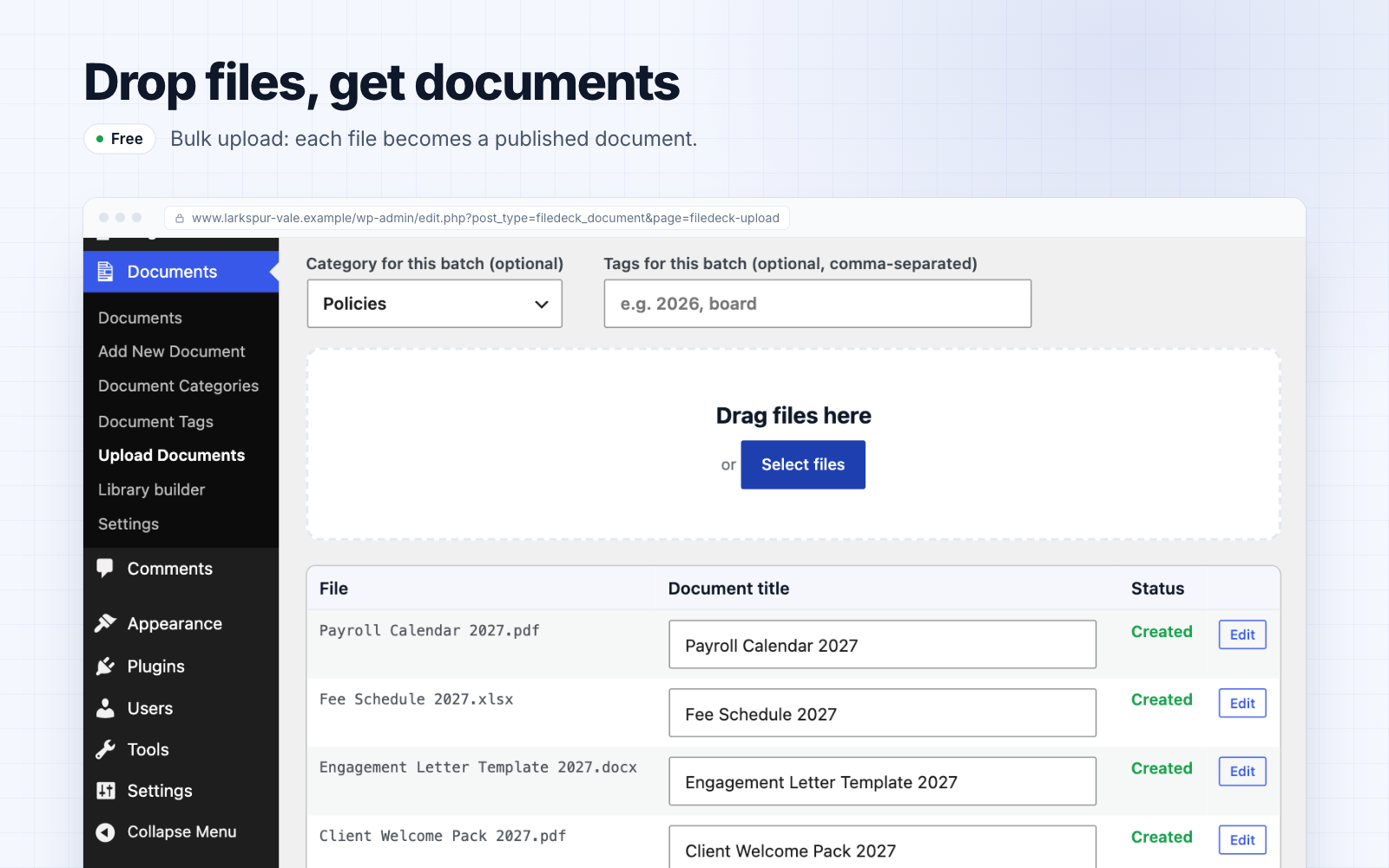
- Import a server folder – point FileDeck at a folder in your uploads directory and every file becomes a document, with sub-folders becoming nested categories; an optional daily re-scan imports new files on their own, so SFTP-ing a file in is enough to publish it
- Automatic PDF thumbnails – plus Office, audio and video previews and inline embeds on top of the free PDF/image lightbox and embed
- Self-hosted PDF viewer – embedded PDFs render from your own server with zoom, in-document find, print and full screen; because no external viewer service is involved, protected files, signed links and watermarked documents all display. Popup mode opens any embed in an overlay that loads only when clicked
- Document lifecycle – version history, supersede with evergreen links, review cycles, approval workflow and auto-expiry, plus a public document changelog (a block or the
[filedeck_changelog]shortcode) that lists published and updated documents newest first, grouped by month - Check-out & editing locks – claim a document while you prepare its next revision, so nobody else can replace the attached file until you check it back in
- Downloads toolkit – email/webhook download notifications, daily quotas, per-document download limits (expire after N downloads), optional CAPTCHA bot friction (Cloudflare Turnstile or Google reCAPTCHA), lead capture with Mailchimp/Brevo sync, multi-select zip downloads with a select-all control in the table header, and Download all on a folder
- Require a form before download – gate downloads behind Gravity Forms, Ninja Forms, WPForms, Contact Form 7 or any other form plugin you already use
- Attach documents to a post – tick documents in the post editor and they list automatically at the end of the page
- Terms before download – require readers to accept licence conditions or a disclaimer first, with every acceptance recorded in the activity log
- Analytics & audit – activity log with per-document history (with country, referrer and user agent), a per-document view count (also as a library column), analytics dashboard, optional GA4 events, CSV export
- Search synonyms & spelling tolerance – teach the library your own shorthand so “PO” finds “purchase order”, and let a search that returned no results retry against the closest spelling in your titles and categories, saying which word it used
- Search analytics – popular searches and a content-gap report of searches that found nothing, fed by every search box: library search, the command palette, full-text and AI search
- Document feedback – anonymous “Was this helpful?” votes on document pages, with a least-helpful report (off until you enable it)
- Cloud storage – browse and attach files from Amazon S3 or any S3-compatible service (Cloudflare R2, Wasabi, DigitalOcean Spaces), plus Dropbox, Google Drive, OneDrive, SharePoint document libraries and Box
- Vault offload – mirror protected files into an S3-compatible bucket and serve downloads by short-lived presigned link, so the bucket carries the bandwidth while every access check still runs first
- Multisite shared libraries – render one site’s library on any other site of a WordPress network, with the source site’s access rules still enforcing
- Publish & embed – put your whole library on any other website (Wix, Squarespace, Shopify, Webflow, Framer, or a custom front end) with one line of code; embeds show public documents only
Plus custom fields with faceted filtering, CSV import/export, bulk add from the Media Library, change subscriptions, a library health monitor, a GDPR toolkit and more — see every feature. An optional AI tier adds records governance — retention schedules, access certification, transmittals, acknowledgment tracking and PDF accessibility screening — plus semantic search, smart collections and “Ask this library”. Full pricing: https://www.getfiledeck.com/pricing/
Download Monitor, Simple Download Monitor, WordPress Download Manager, Document Library Pro, Document Library Lite, Shared Files, Simple File List, Advanced File Manager, BSK PDF Manager, Download Attachments, WP Customer Area, FileBird, and FileBird Document Library are trademarks of their respective owners; FileDeck is not affiliated with or endorsed by them.
螢幕截圖
Blocks
This plugin provides 3 blocks.
- FileDeck: Document Embed
- Document Library
- Popular Documents
安裝
- Upload the plugin to
wp-content/plugins/filedeck, or install it from Plugins Add New in your WordPress admin. - Activate the plugin. A Document Library page is created automatically.
- Go to Documents Add New, add a title, and attach a file (from the Media Library, or paste an external URL). It appears in your library instantly; organize documents with categories and tags.
- Add the Document Library block to any page or post — or use the
[filedeck]shortcode, e.g.[filedeck layout="grid" category="policies" columns="title,excerpt,size,link" per_page="20"]— to display your library. The FAQ lists the shortcode options. - Adjust layouts, columns, and styling under Documents Settings.
常見問題
-
Is there a document limit?
-
No. The frontend automatically handles large libraries: small libraries get a zero-round-trip inline search index; larger ones paginate efficiently.
-
Can I link to files hosted elsewhere?
-
Yes — each document can use an uploaded file or an external URL (Google Drive, Dropbox, SharePoint, S3, YouTube, etc.).
-
Does it track downloads?
-
Yes, every document shows a running download count (visible in the admin list and optionally as a frontend column).
-
Does it work with my theme?
-
FileDeck uses minimal, namespaced styles designed to inherit your theme’s typography, and works with any properly-coded theme.
-
What do I get in the free version?
-
Every layout — table, grid, gallery and folders — plus instant search, sortable columns, multi-select filters with counts, the Gutenberg block, shortcodes, native Elementor, Bricks and Divi elements, download tracking, and no cap on how many documents you can list. Pro adds full-text search inside your files, access control, version history and one-click migration from other plugins.
-
Can visitors search inside my PDFs and Word documents?
-
With Pro, yes. Full-text search reads the contents of your PDFs, Office and text files — with optional OCR for scanned documents — and it runs on your own server, so your documents stay on your site.
-
Can I restrict documents to certain people?
-
With Pro, yes. Restrict a whole category or a single document by role, by password, to logged-in users, to named people, to a group you define once and reuse, or to everyone with an email address at a given domain. Restricted files move into a protected folder and are streamed through FileDeck rather than served from a guessable URL. Site-wide IP rules can additionally limit downloads to chosen networks.
-
Does it work with Elementor, Bricks or Divi?
-
Yes, and in the free version. FileDeck ships native Elementor widgets — Library, Document Embed (also listed as “PDF Viewer”) and Search — plus Library and Document Embed elements for Bricks and Divi. They set the common options directly; for anything else, design the library in the Library builder and paste its shortcode into your page builder’s shortcode element.
-
Can I move my library over from another plugin?
-
With Pro, yes — in one click, read straight from your own database, with no export files and no column mapping. Supported sources include Download Monitor, WordPress Download Manager, Document Library Lite and Pro, Shared Files, Simple Download Monitor, Simple File List, FileBird, BSK PDF Manager, Download Attachments, WP Customer Area and Advanced File Manager. The import is safe to re-run. Once you deactivate Download Monitor, WordPress Download Manager, Simple Download Monitor, Shared Files or Simple File List, the free plugin keeps their old download links, item pages and shortcodes working, and BSK PDF Manager’s old shortcodes too.
-
I use Simple File List — can I still install or update it?
-
Not from the directory: its wordpress.org listing has been closed since 23 July 2026 (the directory gives the reason as a security issue). If you’d rather move, FileDeck imports your entire Simple File List library in one click — files, folders and descriptions — straight from your own database.
-
What shortcode options are there?
-
layout– table, grid, gallery, or folderscolumns– comma-separated: id, image, title, excerpt, content, categories, tags, date, modified, author, size, type, filename, downloads, views, preview, link (viewsneeds Pro activity logging)category– limit to category slugs (comma-separated)per_page– documents per pagesort_by– title, date, modified, menu_ordersort_order– asc or desclink_style– button, button_icon, button_icon_only, icon, icon_text, textdl_text– custom text for the download button/link (default “Download”)image_lightbox– set to 0 to stop featured images opening in a lightboxwrap– set to 0 to keep every document on a single truncated rowscroll_offset– pixel offset for pagination jumps, for themes with a sticky headerstable_columns– set to 0 to let table columns resize to whatever rows are showing (on by default: columns keep their width while visitors search)stable_height– set to 1 to also keep a table library at its first-page height while visitors search
-
I’m on nginx — how do I protect restricted files?
-
FileDeck moves restricted documents’ files into
wp-content/uploads/filedeck-protected/and drops in an.htaccessdeny rule. Apache honours that automatically. nginx ignores.htaccess, so add one location block to your server config and reload nginx:location ^~ /wp-content/uploads/filedeck-protected/ { deny all; return 403; }Until that rule is in place, authorised downloads still work (they are streamed through FileDeck), but the raw files in that folder remain directly reachable. On Apache (and most managed WordPress hosts), no action is needed.
-
What external services does FileDeck connect to?
-
This plugin can connect to these external services, all only with your opt-in:
Freemius — FileDeck uses Freemius to deliver plugin updates, and (for Pro customers) to activate licenses. On activation you are asked to opt in; if you decline, no data is sent and only anonymous update checks are made. If you opt in, Freemius receives basic environment data (site URL, WordPress/PHP versions, active theme/plugins) to power update delivery and diagnostics. This happens when you activate the plugin, opt in, activate a license, or check for updates.
Freemius terms: https://freemius.com/terms/ — privacy policy: https://freemius.com/privacy/FileDeck usage ping — only if you opted in to usage tracking above (and never otherwise), FileDeck sends a small anonymous ping to
https://in.getfiledeck.com/telemetryonce a week, plus once on days 1, 3 and 8 after a new install, to guide the product roadmap. It contains only which ping it is (weekly, or day 1, 3 or 8), the plugin/PHP/WordPress versions, the plan tier, a bucketed count of published documents (e.g. “11–50”), a handful of feature flags — on, off, or not-applicable when the feature isn’t in this build (search index, OCR, AI mode, subscriptions, sample library used), how far the setup wizard got (completed, skipped, dismissed, or not finished), how far the library builder was used (opened, a shortcode loaded, a page created), the dates (day only, no times) the plugin was installed and your first document was added and published — sample documents never count — whether an import in the last week had items that failed, a bucketed count of documents whose OCR stopped on an error, and a random identifier created on your site (not derived from your address, email or account) so that several pings from one site are counted once. It never includes document contents, file names, URLs, emails, IP-based profiles, or any personal data, and uninstalling FileDeck deletes the identifier. Declining or opting out of Freemius tracking disables it completely, and developers can switch it off with thefiledeck_telemetry_enabledfilter.
FileDeck privacy policy: https://www.getfiledeck.com/privacy/Cloud storage (Pro, optional) — if you connect a cloud provider under Documents Cloud storage, FileDeck contacts that provider’s API using credentials you supply, only to list folders and fetch files you choose. Amazon S3 (
*.amazonaws.com, or the S3-compatible endpoint you configure), Dropbox (api.dropboxapi.com, OAuth viadropbox.com), Google Drive (googleapis.com, OAuth viaaccounts.google.com), and Microsoft OneDrive and SharePoint Online (graph.microsoft.com, OAuth vialogin.microsoftonline.com), and Box (api.box.com, OAuth viaaccount.box.com; terms: https://www.box.com/legal/termsofservice). Nothing is sent to these services unless you set up a connection.
Amazon S3 terms: https://aws.amazon.com/service-terms/ — Dropbox: https://www.dropbox.com/terms — Google: https://policies.google.com/terms — Microsoft: https://www.microsoft.com/servicesagreementScanned-PDF OCR (Pro, optional) — off by default. When you enable it, FileDeck sends PDFs that have no text layer to the FileDeck OCR service (
https://filedeck-ocr-production.up.railway.app, or a Service URL you set): each one you publish, or give a document as its new file, while OCR is on; and scans already in your library, or added on the Import & Export screen, when you press Send on the Search Index tab. Each file is sent with your site’s Freemius install ID, which the service uses to confirm your license with Freemius, but not under its own name. The service extracts the text and discards the file.
FileDeck privacy policy: https://www.getfiledeck.com/privacy/Bot protection & mailing lists (Pro, optional) — if you add CAPTCHA keys, the token from a completed check is verified against the service you selected:
challenges.cloudflare.comfor Cloudflare Turnstile (terms: https://www.cloudflare.com/website-terms/) orwww.google.comfor Google reCAPTCHA (terms: https://policies.google.com/terms). If you connect a mailing-list provider, captured lead names and emails are sent to the provider you chose — Mailchimp (api.mailchimp.com, https://mailchimp.com/legal/) or Brevo (api.brevo.com, https://www.brevo.com/legal/termsofuse/). Both are off until you configure them.In-dashboard help (Pro) — FileDeck’s admin screens show administrators a Help button. Only when you send a question (one you type, or a suggested one you click) does your site send the question, up to six earlier messages of that conversation, your site’s address and the FileDeck version to getfiledeck.com (
https://www.getfiledeck.com/wp-json/filedeck-site/v1/help/), where an AI model (Anthropic) writes an answer from the FileDeck documentation. If you choose “Talk to a person”, it also sends the email address and optional name you enter, with up to twelve messages of the conversation, so that a person can reply by email. The conversation is kept on getfiledeck.com for 90 days after its last message, so you can pick it up later and see when a person has replied by email. It is linked to a random reference stored with your WordPress user account, which your site sends with each question and with “Talk to a person”, and again when a FileDeck screen loads, when you open the panel, or when the conversation changes in another tab, to show the conversation and whether a person has replied. “New conversation” ends it and deletes the reference.
FileDeck privacy policy: https://www.getfiledeck.com/privacy/The optional AI tier features (semantic search and Ask this library) are not part of this free plugin, and are not included in Pro. If you buy the AI tier and enable them with your own API key, the document text you choose to index is sent to the AI provider you pick (OpenAI, Anthropic, Voyage or Fireworks AI) to create embeddings and answers. They are off by default and never active in the free version.
評價


貢獻者及開發者

修改日誌
2.112.1
- Pro: when scanned-PDF OCR can’t finish a very long scan in time, it now keeps the pages it read, which are searchable, instead of failing and retrying. The Search Index tab says how many documents were read only in part.
- Pro: scanned PDFs are no longer sent for OCR under their own file names, and on FileDeck’s OCR service a licensed site uses its license even if an older OCR key is still saved.
- Security hardening for scanned-PDF OCR.
2.112.0
- Pro: the in-dashboard Help panel keeps your conversation for 90 days, so it is there in another tab or when you come back, and it lets you know when a person has replied to you by email. The Help button shows when a reply is waiting, and New conversation ends it.
2.111.0
- AI tier: on OpenAI, Ask this library and AI summary suggestions now default to gpt-6-luna, ahead of OpenAI retiring the old default (gpt-4o-mini) on 14 January 2027, and work with OpenAI’s newer reasoning models.
- AI tier: on Anthropic, Ask this library and AI summary suggestions now default to Claude Haiku 5.5, at a tenth of the per-token price of the previous default on your own API key. If you chose a model yourself, it is kept. Both also work with the newest Claude models, which think before they answer.
- AI tier: when an Ask this library answer or an AI summary suggestion fails, the Ask AI settings tab now shows the provider’s own error until a request succeeds again.
- AI tier: after your first scan, the accessibility report screens new and replaced PDFs automatically, and it says a scan is in progress only while one is scheduled.
- Pro: a Help button for administrators on FileDeck’s screens in wp-admin. An AI assistant answers questions from the FileDeck documentation, and passes a question to a person by email when the documentation doesn’t cover it.
- Deactivating FileDeck because it wasn’t what you were looking for? The feedback form now lets you pick what you were after in one click, and says so when FileDeck already does it.
- Access-rule improvements in wp-admin.
2.110.3
- Pro: on sites where WordPress’s scheduled tasks don’t run, documents you add or edit are now indexed for content search as you save them, instead of waiting for a background task that doesn’t run there. A large batch at once, such as an import, starts a rebuild you can finish from the Search Index tab, and index work left waiting from before is picked up as you use the admin. The Search Index tab says when it is working this way.
2.110.2
- Pro: a search-index rebuild that has stopped moving can finish from your browser. On hosts that switch off WordPress’s scheduled tasks, a rebuild could sit at “0 of N documents processed” indefinitely; the Search Index tab now says when a rebuild has stalled, and “Continue in this browser” runs it from the page with live progress. A file too large or damaged to read in time no longer stops a rebuild: the document is indexed by title and description and listed on the tab.
wp filedeck reindexalso ends any queued rebuild.
2.110.1
- Dates show on sites whose theme or a plugin hides post dates. A library’s Date and Updated columns, its date filter and year grouping, and a document page’s Published and Updated lines were empty there; they now show each document’s own date. Pro: review reminders, retention and transmittals take the document’s date on those sites too.
2.110.0
- Pro: a client portal. Add a client under Documents Clients and FileDeck creates their account, a private area and your portal page, and emails them an invitation to choose their own password. Clients sign in on your site rather than the WordPress dashboard, see only their own documents with what is new since their last visit, and manage their own details. The Clients screen shows who has accepted and when each client last visited, and lets you resend invitations, import clients from a spreadsheet and preview the documents a client sees. Add it to any page with the Client portal block or the [filedeck_client_portal] shortcode.
- AI agents can reach your library. On WordPress 6.9 and later, FileDeck’s search, document lookup and category list show up for agents through the MCP Adapter or WordPress’s REST API; before, they did not. Agent searches leave out expired documents and, in Pro, superseded ones.
- Switched from BSK PDF Manager? Its shortcodes already in your pages now show your FileDeck library, document link or viewer once the old plugin is deactivated.
- Documents with a file attached from another plugin’s private folder (Memphis Documents’ uploads/mdocs, for example) now download and preview; before, the server refused them on most hosts.
- Pro: OneDrive and SharePoint connections accept the app’s Directory (tenant) ID, so an app registered for one organization (Entra’s default) can connect, and the SharePoint browser lists every site, not only the first 50.
- Pro: an existing [filedeck_my_documents] page shows signed-out visitors the portal’s sign-in card, with password reset, instead of a link to the WordPress login. Emails about new documents link through your portal page once you have one, and clients can turn them off on their Account tab.
- Pro: Library Health’s “Attach them now” works through large libraries without getting stuck. It takes only the documents it can attach and lists the rest apart, with what to do about them. Its scan also finds local links written with %20 for spaces.
- Columns that keep their width in the library table no longer break a word such as “Download” across two lines.
- Access-rule and reliability improvements in wp-admin and the media library.
2.109.2
- Pro: a CSV import recognises a Media Library file whose name contains spaces and attaches it, so the document shows its size and type. Before, such rows were kept as links. Documents Settings Health Attach them now attaches the ones an earlier import left as links. One whose file is in another plugin’s private folder stays a link: move those documents to the Trash first, then import those rows again, and a file in your Media Library is attached.
2.109.1
- Access-rule and reliability improvements in wp-admin. If your authors or contributors attach files to restricted documents, those files no longer appear in their Media Library or media picker; each one stays attached and is shown in its document’s editor.
- The opt-in usage ping dates a library imported from another plugin from its import, or from the day FileDeck was installed if that is later, not from the original items’ dates.
2.109.0
- Pro: when a one-click import can’t bring an item across, the Migrate screen names it and says why (its file is missing, it is in the old plugin’s trash, and so on), with an Import again button. Documents Settings Health shows the same list. Stopping an import keeps what it had done so far, that list included.
- The “Added in the last…” filter now works on large libraries too.
- The Elementor Library widget offers your custom-field and taxonomy columns.
- Pro: share buttons switch off with the rest of Pro when a licence lapses.
- Pro: duplicating an imported document no longer carries over its link to the old plugin’s item.
- The opt-in usage ping (sent only if you opted in) now carries the install, first-upload and first-publish dates (day only), whether last week’s import had failures, a bucketed count of documents whose text recognition stopped on an error, and a random identifier for the site. The External services FAQ lists every field.
- Updated Freemius SDK to the latest version.
- The opt-in and pricing screens show the FileDeck icon.
- Access-rule and reliability improvements in wp-admin.
2.108.0
- New: the Library builder (Documents Library builder) designs a library with a live preview on your own site, in your theme, as a visitor or as you. Create the page in one click or copy its shortcode; paste an existing shortcode to keep editing it. The Document Library block opens the same builder, and its preview in the editor now uses FileDeck’s styles.
- After a one-click import from Download Monitor, WordPress Download Manager, Simple Download Monitor, Shared Files or Simple File List, the old plugin’s download links, item pages and shortcodes (where it had them) keep working once you switch it off — in the free plugin.
- Document pages list a document’s reference, published and updated dates, categories and tags above the Download button; choose which under Documents Settings Display Document pages, including an optional download count.
- Pro: importing from Download Monitor brings older versions into each document’s version history; importing from WordPress Download Manager brings every file in a multi-file package. Run an import again to fill in what an earlier one left out.
- Pro: client-area emails reach the people who can open a new document (up to 200 per document) — named people, group members and email-domain matches — including batch uploads, block-editor publishing, scheduled documents and sub-folders. Imports stay quiet.
- The default-columns setting keeps the Reference and Views columns on save.
- Security and reliability improvements.
- The wordpress.org listing shows the full description and the external-services disclosure; both had been cut short.
2.107.2
- The plugin’s description on wordpress.org fits the directory’s length limit again, so the whole of it shows; it had been cut short. Older changelog entries moved to changelog.txt in the plugin folder. This release changes the listing only; the plugin works as before.
2.107.1
- The plugin’s description on wordpress.org now says what FileDeck is used for: safety data sheets and product documentation, meeting minutes and newsletters by year, school and staff policies, client file sharing and public reports. This release changes the description; the plugin works as before.
2.107.0
- Pro: a “Test connection” button on the Scanned OCR settings tab checks that the saved Service URL reaches an OCR service, and says why when it doesn’t.
- Pro: pasting an email redirect link as the OCR Service URL (the long google.com/url?q= or Outlook Safe Links form an email client can turn a link into) now saves the address inside it. A Service URL with a query string, or one that isn’t https or points at a private network, is refused with a message saying why. Until now such a URL was either saved as-is, sending scans to the wrong address, or silently not saved.
2.106.1
- Instant search finds titles written in your site’s language. On a Danish site, “møde”, “bestyrelsesmøde” and “ø” now find “Bestyrelsesmøde”; on a German site, “prüfung” and “pruefung” both find “Prüfungsordnung”, and “strasse” finds “Straße”. Letters such as ø, æ, å, ß and umlauts could make a search miss, because the library and the search box spelled them differently.
- Instant search finds titles in Cyrillic, Greek, Korean and Japanese as you type them. Letters such as й and ё, accented Greek vowels, Korean syllables, Japanese kana with voicing marks, and capital Cyrillic and Greek letters could make a search miss.
2.106.0
- Pro: one-click imports bring across a password set with WordPress’s own Password protected visibility. The imported document asks for the same password before its file can be downloaded, and FileDeck protects its own copy of the file. For documents imported before this release, the Migrate screen lists any that don’t yet ask for their item’s password, with a button to add the same passwords.
- Pro: Settings Health lists documents that use the same file as a restricted document without the same restrictions, with a link to edit each, so you can decide whether the file should stay private.
- Security and reliability improvements across the library, document pages, imports, exports and embeds, in the free plugin and Pro. If your site uses a page cache, clear it once after updating.
2.105.1
- Pro: on sites that run WordPress on SQLite (for example WordPress Playground, Studio by WordPress.com, or the SQLite Database Integration plugin), search could match words a document no longer contains. Updating fixes this, re-indexing in the background where needed.
- Pro: on a server missing a PHP extension FileDeck needs to read PDFs (zlib, iconv or mbstring), PDFs are no longer counted as scans or sent for OCR, including PDFs an earlier version had already counted: there, a PDF with a text layer can’t be told apart from a scan. The Search Index tab names the missing extensions. On every server, each PDF is now checked again just before it is sent, and one that turns out to have a text layer stays on your site.
- Pro: a document moved to a byte-identical copy of its file keeps its OCR text instead of dropping it.
- Pro: switching scanned-PDF OCR back on no longer sends scans that were still waiting for room in the queue when it was switched off, including when it was switched off while the license had lapsed.
2.105.0
- Pro: Settings Health lists restricted documents whose imported original is still public. A one-click import gives a restricted document its own protected copy and leaves the original where the old plugin keeps it, so anyone with a direct link to that original can still open it. Each row names the file and offers to delete it, or to move it into protected storage if you’d rather keep it. Deleting is offered only when the file isn’t used by another document and isn’t linked from a post, page or menu (in its content, a custom menu link, Elementor’s page data or as its featured image), and isn’t your site icon or logo; links kept anywhere else aren’t checked, so look before you delete. Either way, the old plugin’s link to that file stops working.
- Pro: Settings Health also lists restricted documents whose file could not be moved into protected storage, and imported documents that arrived without their file. These checks include drafts, and the weekly Health email reports them. An import that leaves a restricted file unprotected says so in its summary, with a link to Health.
- Pro: running a WP Customer Area import again finishes a document that an interrupted run left without its file. The document stays a draft for you to publish.
- Pro: re-running a WP Customer Area import leaves the client areas it made earlier, and the people you’ve added to them, as they are.
- Pro: a Download Monitor download whose file is in Download Monitor’s protected
dlm_uploadsfolder gets its own copy in FileDeck, so its Download button works. It used to link the file where Download Monitor keeps it, which the server refuses to serve. - Security and reliability improvements to the one-click importers.
2.104.1
- Pro: signed-in members get the restricted documents they’re allowed to have when lead capture or terms acceptance is switched on. Leaving their details or accepting the terms used to end in an error instead of the file.
- Pro: a member’s zip includes the restricted documents they selected, and searching inside documents finds text in restricted documents they’re allowed to read. Both used to leave those documents out.
- Pro: daily download limits, terms acceptance, lead capture and the form and bot checks apply to restricted documents’ Download buttons the same way they apply to every other document. Share links you create yourself (single-use links and transmittals) still skip them. If you set daily download limits, downloads of restricted documents now count towards them, whether by members or by visitors who unlocked a password-protected category.
- Pro: the
[filedeck_download]button and an embedded document’s download link show the lead form, terms or check when one is switched on, instead of an error. - AI plan: a view-only restricted document opens for the people it’s shared with, from the library and from its own page. A view-only document’s own page shows the lead form, terms or check when one is switched on, and with lead capture on, a view-only document opens after the form instead of showing an error.
- Security and reliability improvements.
2.104.0
- Pro: with scanned-PDF OCR switched on, each scanned PDF you publish is now sent for OCR automatically, so it becomes searchable without anyone going back to the Search Index tab. Before, a scan added after OCR was switched on waited until someone pressed Send again. Scans that were already in your library when you switched OCR on, and scans added on the Import & Export screen (bulk add, including files dropped there, a CSV import or a migration), still wait for you to press Send. New scans go one at a time in the background, within the same 100-a-day fair-use limit as before.
- Pro: replacing a scanned document’s file with a new scan now makes the new file searchable. Before, the old scan’s OCR text stayed in the search index for the new file, and the new scan wasn’t sent. This also holds when the file is replaced while the old scan is still being read.
- Pro: a scanned PDF that you unpublish or move to the trash before its turn in the OCR queue is no longer sent.
Older releases are listed in changelog.txt.