

描述
Crypto payment gateway for your business
Accept any crypto from any wallet and get paid in cash, instantly.
Crypto consumers are one of the fastest growing segments in the world with over 300 million wallets issued to date. Studies show that crypto consumers spend 2x AOV of a typical credit card consumer and that 40% are in fact new customers. Crypto is more efficient than traditional payment methods as there are less parties involved in a payment process.
Key Features:
* Accept 100+ cryptocurrencies
* Instant payment processing with zero confirmation options
* Automatic order status updates via webhooks
* Sandbox testing environment
* Comprehensive payment handling (underpayment/overpayment)
* WooCommerce 6.2+ compatibility
螢幕截圖
Order checkout currency selection 
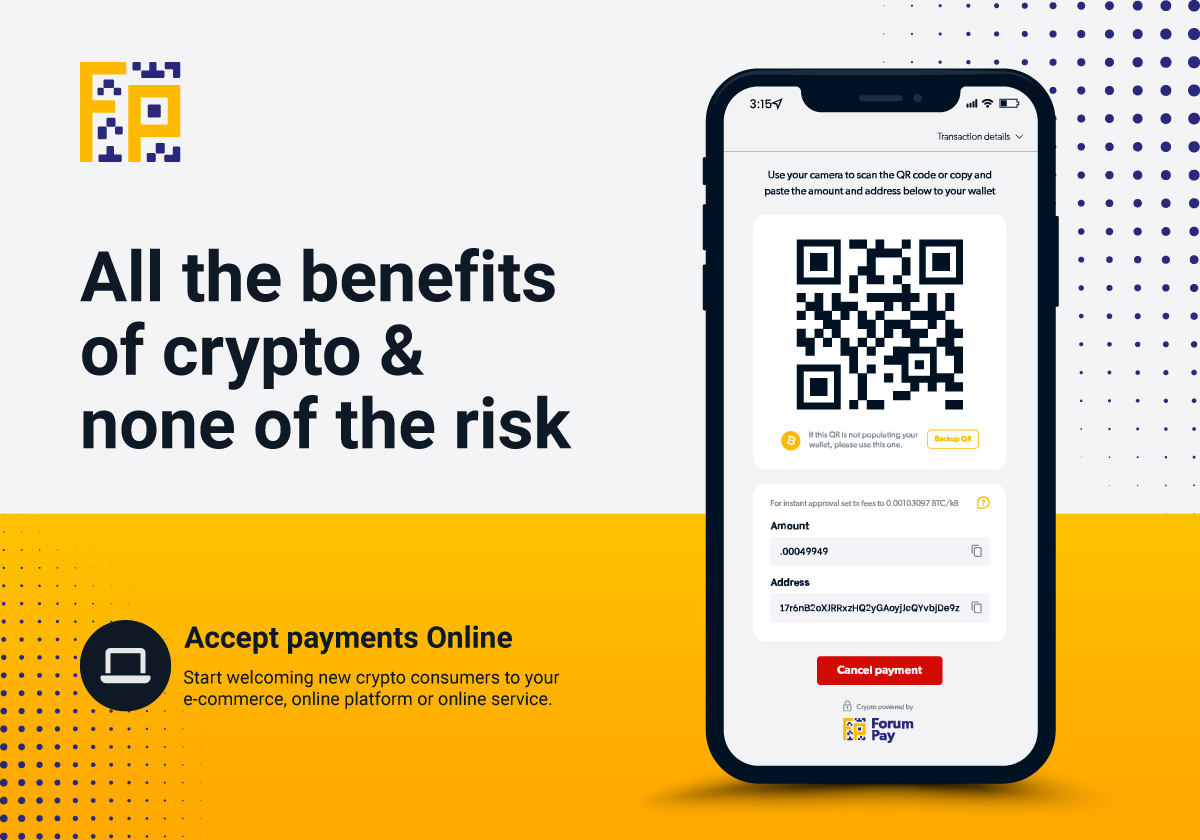
Order checkout wallet QR code
安裝
Using admin panel
1. Recommended method – install via WordPress Plugin Directory
Open your admin panel and select Plugins tab. Click Add New and then search for ForumPay Crypto Payments for WooCommerce.
Then click the Install Now button. After the installation is complete, click the Activate button.
2. Alternative method – install by uploading the plugin manually
Open your admin panel and select Plugins tab. Click Add New and then Upload Plugin.
Select the downloaded ForumPay module .zip file and upload it, find the plugin in the list, click Install Now, and then click Activate to enable it.
Manual method (through filesystem):
Transfer the downloaded .zip archive to your server and unzip it, so the forumpay-crypto-payments directory goes into the /wp-content/plugins/ directory relative to your WordPress root.
The directory structure should be as follows: /wp-content/plugins/forumpay-crypto-payments.
After the module is installed, go back to the Plugins page and activate it.
Configuration details:
General Settings
-
Enable/Disable
Check this box to enable the ForumPay Payment Module for your store. -
Title
The label of the payment method that is displayed when user is prompted to choose one. You can leave default or set it to something like Pay with crypto. -
Description
The additional description of the payment method that is displayed under the title.
API Settings
-
Environment
Dropdown lets you switch between ‘Production’ and ‘Sandbox’ modes.
Use ‘Production’ for processing real transactions in a live environment and
‘Sandbox’ for safe testing without financial implications. -
API User
This is our identifier that we need to access the payment system.
It can be found in your Profile.
Go to profile > -
API Secret
Important: never share it to anyone!
Think of it as a password.
API Secret consists of two parts. When generated in ForumPay dashboard,
the first one will be displayed in your profile, while the second part will be sent to your e-mail.
You need to enter both parts here (one after the other). -
POS ID
This is how payments coming to your wallets are going to be identified.
Special characters are not allowed. Allowed characters are:A-Z,a-z,0-9,.,_and-(e.g.my-shop,my_shop). -
SID
Optional: Enter unique identifier for a sub-account within your main account. -
Webhook URL
Optional: This URL should point to the endpoint that will handle webhook events.
Typically:https://your-site.com/wp-json/wc-api/wc_forumpay?act=webhookorhttps://your-site.com/?wc-api=wc_forumpay&act=webhook
If set, this URL will override the default setting on your ForumPay Account. -
Custom environment URL
Optional: Override the URL to the API server regardless of the environment. Only used for debugging.
Payment Options
-
Accept Instant (Zero) Confirmations
Allows immediate transaction approval without waiting for network confirmations, enhancing speed but with increased risk. Please make sure you understand the risk before enabling this. -
Auto-Accept Underpayments
Enable this option to automatically accept payments that are less than the total order amount. Note that you will receive less funds if an underpayment is accepted. -
Underpayment Threshold
Enter the maximum percentage (0-100) of the order total that can be underpaid for the order to be accepted automatically. -
Modify Order Total for Underpayments
Enable to modify the order total to reflect underpayments as a separate fee. This will be negative to indicate less payment received. -
Underpayment Fee Description
Description for the underpayment fee line item (e.g., “ForumPay underpayment”). -
Auto-Accept Overpayments
Enable this option to automatically accept payments that are higher than the total order amount. Note that you will receive more funds if an overpayment is accepted. If you choose to not accept overpayments, any extra amounts will not be accepted and will be available for refunds (if possible). -
Overpayment Threshold
Enter the maximum percentage above the order total that will be accepted automatically if the order is overpaid. -
Modify Order Total for Overpayments
Enable to modify the order total to reflect overpayments as a separate fee. This will be positive to indicate extra payment received. -
Overpayment Fee Description
Description for the overpayment fee line item (e.g., “ForumPay overpayment”). -
Auto-Accept Late Payments
Automatically accept the payment if transaction was received late and either the paid amount yields enough funds for the payment order or accepting it is allowed by the other Auto-Accept conditions.
System Information
- Installation ID
Unique identifier for this installation (read-only, auto-generated).
Don’t forget to click Save changes button after the settings are filled in.
How to Test
After configuring the plugin, follow this step-by-step guide to test the complete ForumPay payment flow in your WooCommerce store:
Step 1: Add Products to Cart
- Browse your store and select products you want to test
- Add products to cart by clicking “Add to Cart” buttons
- View cart to verify products are added correctly
- Proceed to checkout when ready
Step 2: Checkout Process
-
Fill in customer information:
- Billing address
- Shipping address (if different)
- Contact information
-
Select shipping method (if applicable)
-
Choose payment method:
- Look for “ForumPay” or your custom payment title
- Select it as your payment method
- Verify that the correct description appears below
Step 3: ForumPay Payment Widget
- Click “Place Order” button
- You’ll be redirected to the ForumPay payment page
-
Select cryptocurrency:
- Choose from the dropdown (Bitcoin, Ethereum, etc.)
- Verify that the exchange rate is displayed
- Check that the fees and total amount are calculated correctly
-
Review payment details:
- Order amount in your store currency
- Cryptocurrency amount
- Network fees
- Total amount to pay
- Expected confirmation time
Step 4: Complete Payment
- Click “START PAYMENT” button
- QR Code appears with payment information
-
Payment options:
- Scan QR Code with your crypto wallet app
- Copy address manually and send from your wallet
- Use wallet integration if supported
-
Send payment from your cryptocurrency wallet
- Wait for confirmations (time to wait depends on the selected cryptocurrency)
Step 5: Payment Confirmation
Notice that:
- Payment status updates automatically
- Order status changes in WooCommerce admin
- Confirmation email is sent to customer (if configured in WooCommerce)
- Order appears in WooCommerce orders list
Testing in Sandbox Mode
For safe testing:
1. Use Sandbox environment in plugin settings
2. Test with small amounts first
3. Monitor logs for any errors
常見問題
-
Can not select cryptocurrency, there is no dropdown:
-
This issue probably happens because webshop\’s backend cannot access ForumPay.
Please check if your API keys in the configuration are correct. -
The plugin has been installed and activated successfully, but it does not appear in the WooCommerce payments settings
-
Please ensure that you have installed the latest release of the ForumPay Payment Gateway plugin.
-
Server returns **413 Request Entity Too Large** error when uploading the plugin zip file
-
Please check your Nginx configuration. client_max_body_size and post_max_size properties should be larger than the uploaded .zip file
server {
    client_max_body_size 20M;
    post_max_size 20M;

    ...
}
評價
There are no reviews for this plugin.
貢獻者及開發者

修改日誌
2.1.3
- Plugin released.